Account Security Settings
Security teams reviewing Pactly usually ask the same questions: how long until an idle session logs out, who gets told when someone is hammering a login, who is watching admin-level activity, and where a link in a document can point. This page is the reference for the account-level security controls that answer them.
Most of these settings live in the left menu under Security → General (the page header reads Security Settings). They apply to your whole company and are admin-only. Two-factor authentication is the exception: it is set per user under Account settings → Profile. This page covers the company-wide security configuration, not the sign-in flow itself; for how a user actually signs in (email-first, password vs. single sign-on, the one-time-password step), see Signing in to Pactly.
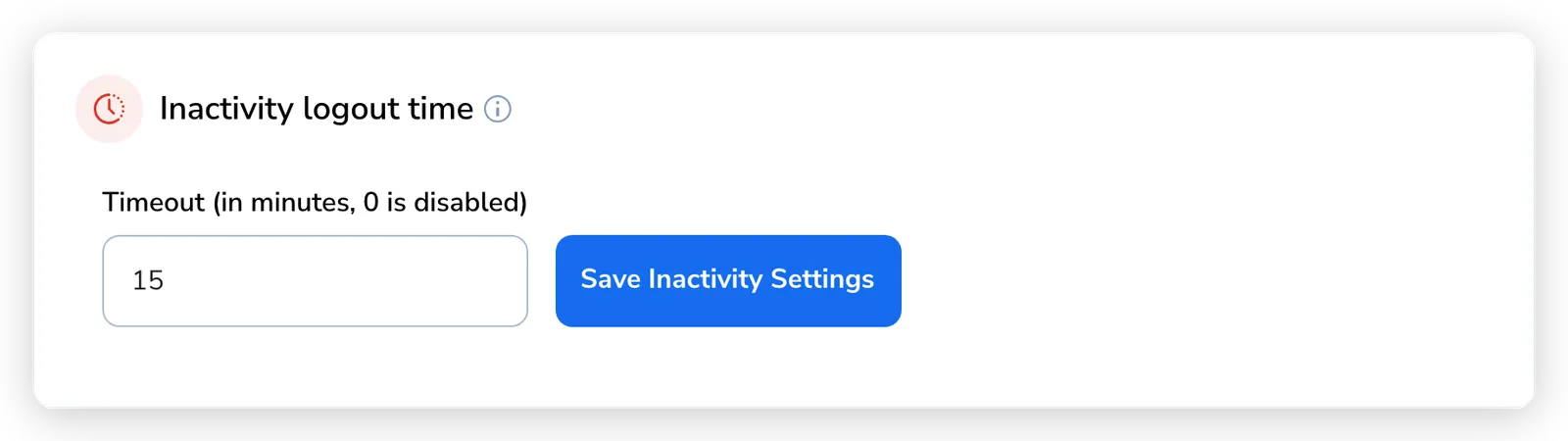
Inactivity logout time
Section titled “Inactivity logout time”A timeout that signs a user out after a period of no activity, so an unattended session on a shared or unlocked machine does not stay open indefinitely.
| Setting | Detail |
|---|---|
| Field | Timeout (in minutes, 0 is disabled) |
| Range | Any number of minutes |
| Disabled | Enter 0 to turn the timeout off |
| Scope | Applies to every user in the company |
Set the value, then click Save inactivity settings.
Failed login alerts
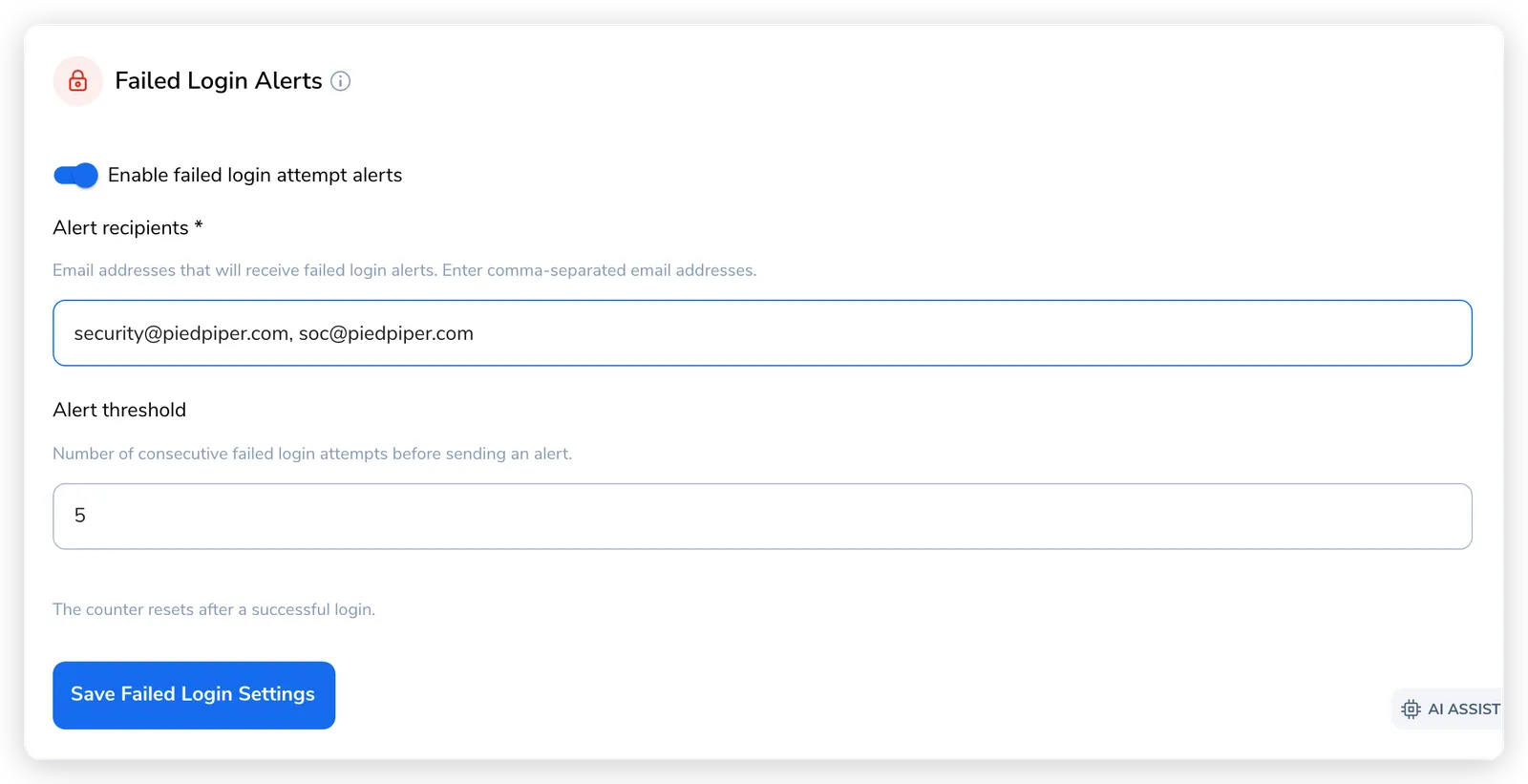
Section titled “Failed login alerts”An email alert sent when a single account hits too many consecutive failed sign-in attempts, which can indicate a password-guessing attempt. Turn the toggle on to reveal its options.
| Setting | Detail |
|---|---|
| Toggle | Enable failed login attempt alerts |
| Alert recipients | One or more email addresses (comma-separated) that receive the alerts. Required when alerts are on. |
| Alert threshold | Consecutive failed attempts before an alert is sent. Between 3 and 20; defaults to 5. |
| Reset behavior | The failed-attempt counter resets after a successful login. |
Recipients do not have to be Pactly users, so you can send alerts to a security mailbox or SIEM intake address. Click Save failed login settings to apply.
Privileged account monitoring
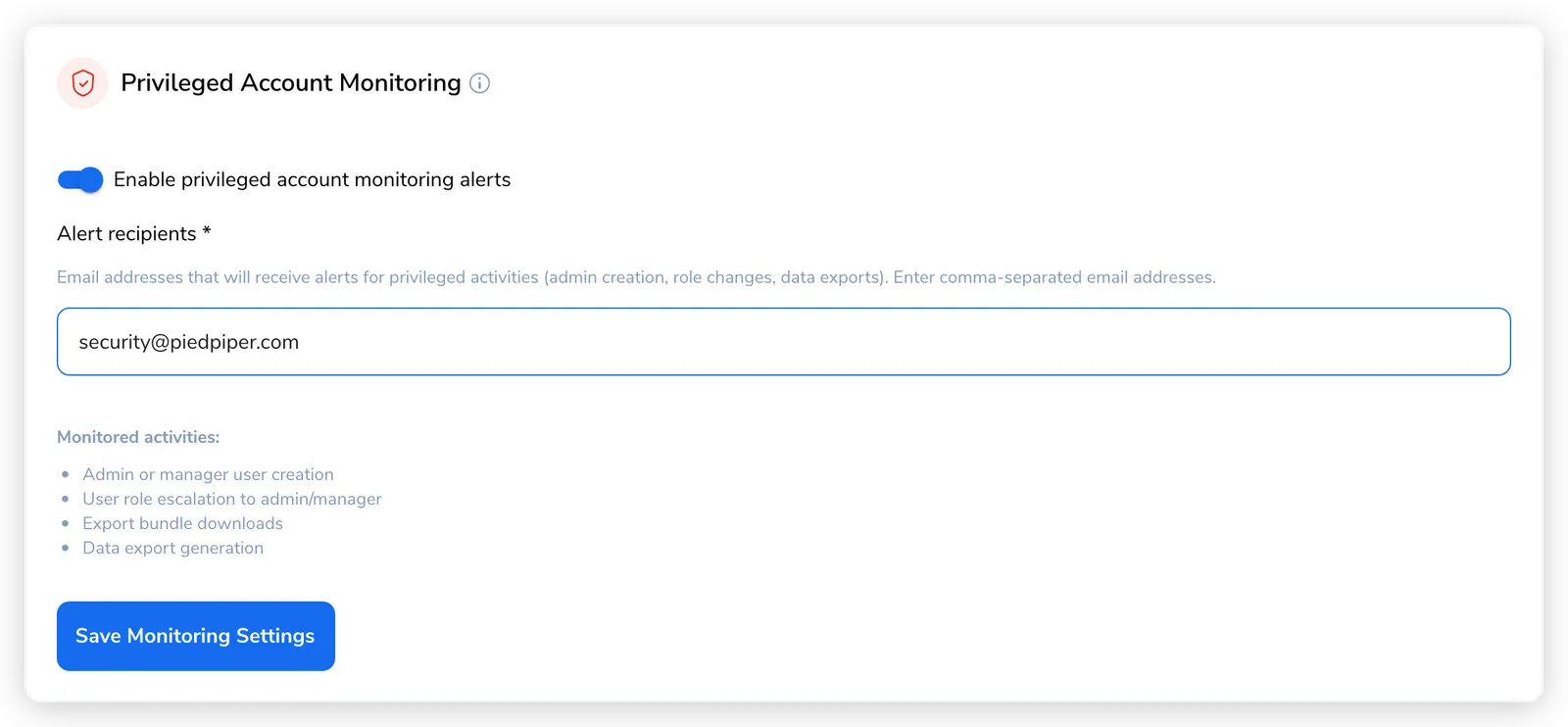
Section titled “Privileged account monitoring”Email alerts for sensitive, admin-level operations, so a designated mailbox is notified whenever a high-privilege action happens. Turn the toggle on to reveal the recipients field.
| Setting | Detail |
|---|---|
| Toggle | Enable privileged account monitoring alerts |
| Alert recipients | One or more email addresses (comma-separated) that receive the alerts. Required when monitoring is on. |
When enabled, Pactly emails the recipients for these monitored activities:
- Admin or manager user creation
- A user’s role being escalated to admin or manager
- Export bundle downloads
- Data export generation
Click Save monitoring settings to apply. As with failed-login alerts, recipients need not be Pactly users.
Hyperlink allowlist
Section titled “Hyperlink allowlist”The hosts your people may link to from a rich text form answer. A form answer does not stay in the form: it can be carried into later forms, into the agreement summary an approver reads, and into the signing email every signer receives. An unrestricted link there is a phishing surface wearing your branding, so Pactly only renders links to hosts you have named.
| Setting | Detail |
|---|---|
| Allowed hosts | Comma-separated hostnames, for example sharepoint.com, intranet.example.org. Empty by default. |
| Subdomains | A host covers its subdomains, so sharepoint.com also allows contoso.sharepoint.com. Name the narrowest host that works. |
| Empty list | No hyperlinks at all. The link button does not appear on rich text fields. |
| Who can link | People signed in to your company only. An external party filling your form never gets the link tool. |
Enter the hosts and click Save hyperlink allowlist.
Links to a host that is not on the list, and any link typed by an external party, render as plain text everywhere they appear. The wording around the link is kept, so nothing the author wrote is lost.
Two-factor authentication (per user)
Section titled “Two-factor authentication (per user)”Two-factor authentication (2FA) adds a one-time code from an authenticator app on top of the password. In Pactly it is set up by each user on their own account, not switched on company-wide from Security Settings.
To enable it, a user goes to Account settings → Profile, finds the Two-factor authentication section, enters their current password, and scans the QR code (or copies the secret key) into an authenticator app such as Microsoft Authenticator or Google Authenticator. They then enter the current one-time code to confirm. The section shows an Enabled or Disabled status pill.
Once 2FA is on, the user is asked for the one-time code as a second step after their password at sign-in. To turn it off, the user returns to the same section, enters their password, and disables it.