Pactly e-Sign Settings
Every signature request your company sends starts from the same set of defaults: how dates print, who is emailed when signing finishes, how long a signing link stays valid, and whether Pactly chases signers who have not acted. Setting them once means nobody has to decide again on each request.
Open Settings, go to Integrations, find the Pactly e-Sign card, and click Settings to open the Pactly e-Sign Settings dialog. These settings apply to every Pactly e-Sign request your company sends, not only your own, so they are an administrator’s to set. Changes take effect when you click Save Settings.
Date Format
Section titled “Date Format”Chooses how dates are written on the signed document and in the emails signers receive. Pick a format from the list and the Preview line above it shows a real date rendered that way, for example 1 January 2026.
Completion Emails
Section titled “Completion Emails”Notify signers on completion controls whether everyone who signed is emailed once the last signature lands. Turn it off when your team distributes the executed document itself and the extra email is noise.
Signed Document Audit Trail
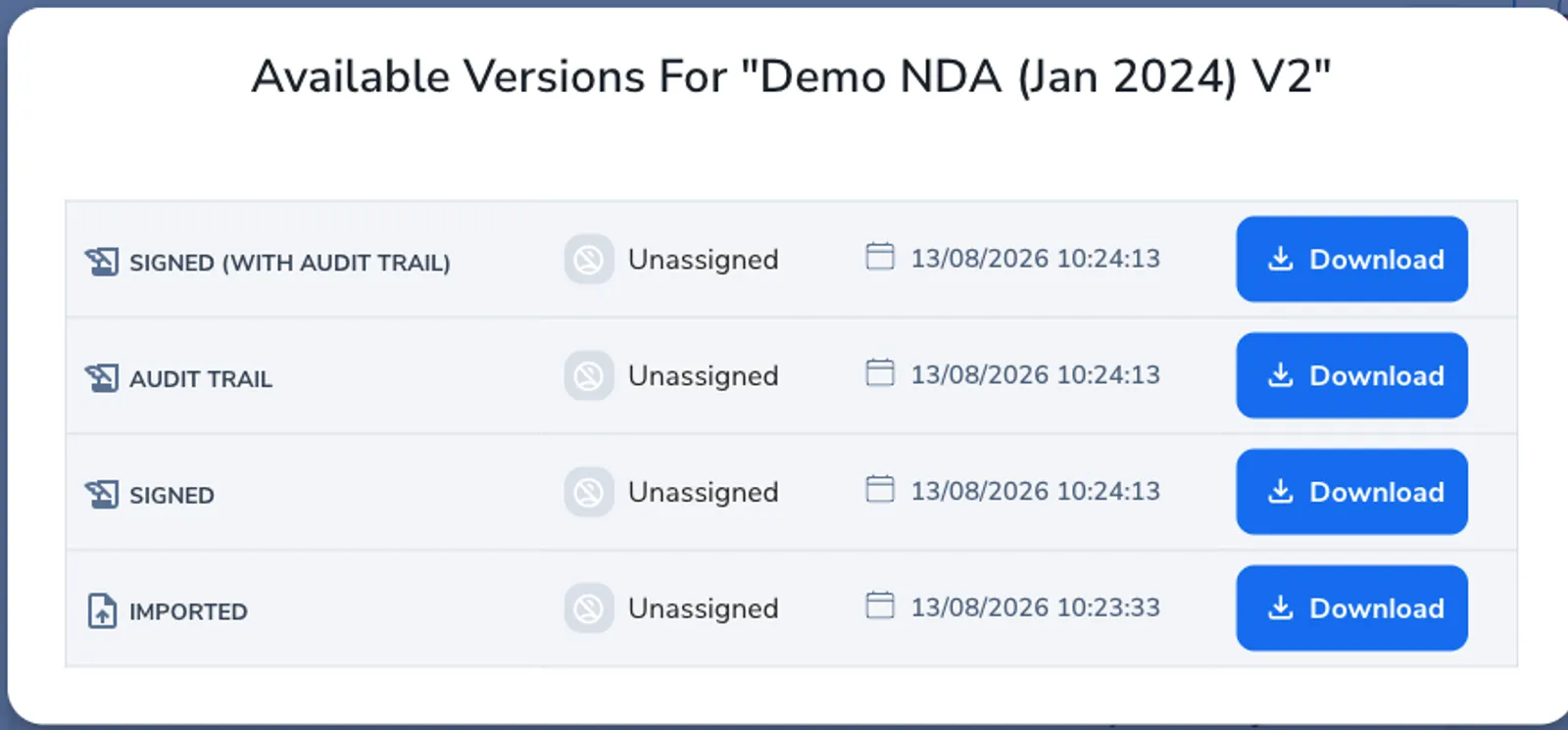
Section titled “Signed Document Audit Trail”When signing completes, Pactly stores three files: the signed contract on its own, the audit report on its own, and a combined PDF with the audit report appended to the contract. Include audit trail in signed document by default decides which version becomes the contract’s executed document, which is the file that goes out whenever the executed contract is downloaded, attached, or shared. With it off, the executed document is the signed contract without the audit trail. All three files stay stored either way, so the other versions remain available for download from the contract.
Approval History in Signer Email
Section titled “Approval History in Signer Email”Show approval history in signer email adds the contract’s approval record to the email a signer receives, so signers can see the agreement was signed off before it reached them. It only applies when the contract was approved through Pactly’s own approvals. A contract with no approval record sends the normal email either way. Leave it off when your approval history is internal.
Signing Link Expiry
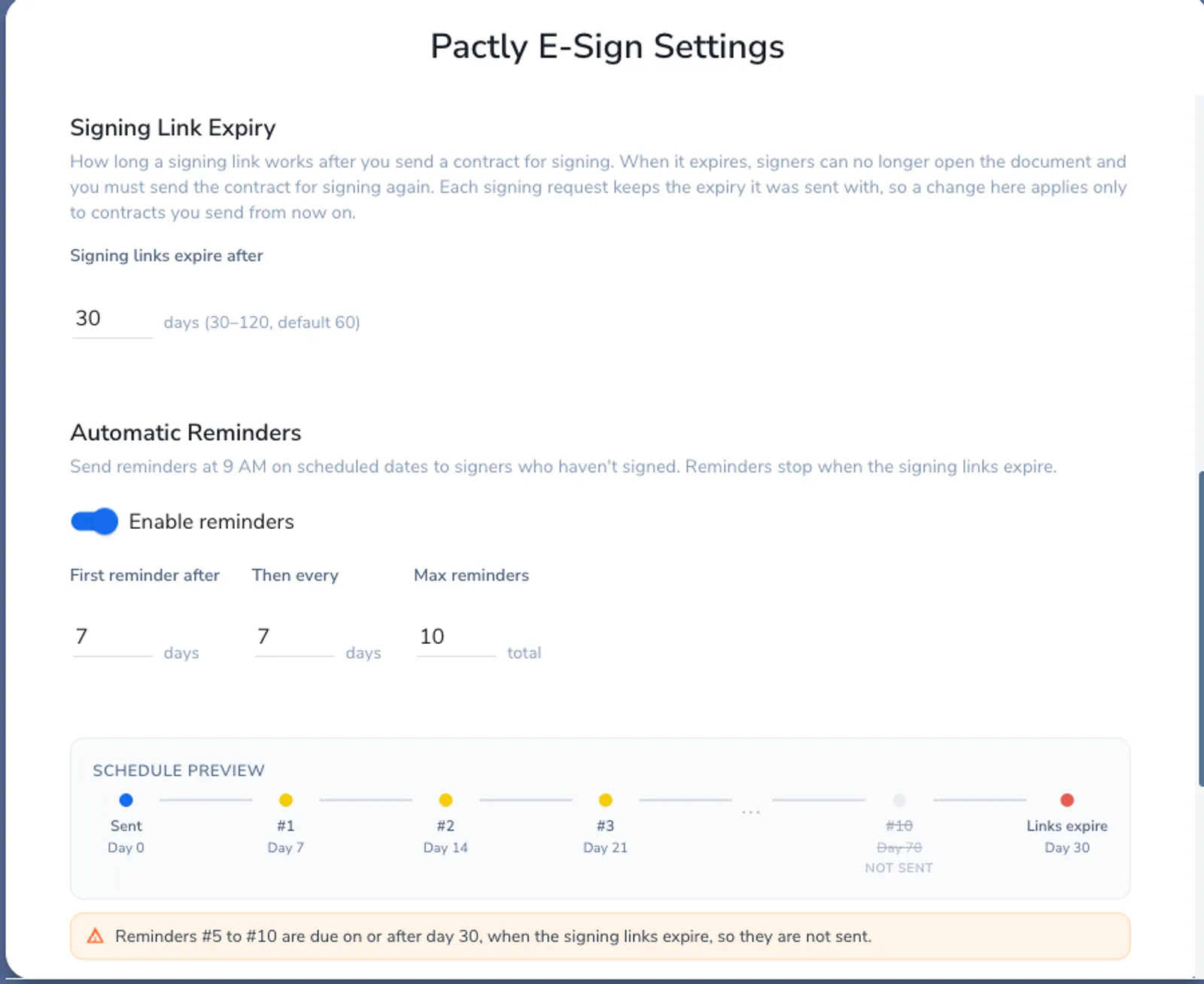
Section titled “Signing Link Expiry”Signing links expire after a number of days you choose, from 30 to 120, and 60 by default. A signer who opens an expired link can no longer sign, so the request has to be sent again to give them a fresh one.
Enable expiration warnings emails signers before their link runs out. Warn signers sets how many days ahead that warning goes, from 1 to 14.
Automatic Reminders
Section titled “Automatic Reminders”Chasing signers by hand is the step that gets forgotten. Turn on Enable reminders and Pactly emails signers who have not yet signed, on a schedule you set:
| Field | What it sets | Range |
|---|---|---|
| First reminder after | Days to wait after the request is sent before the first reminder | 1 to 30 |
| Then every | Days between the reminders after that | 1 to 30 |
| Max reminders | How many reminders a signer can receive in total. Set it to 0 for unlimited | 0 to 10 |
Reminders go out at 9 AM on their scheduled dates, and only to signers who still have something to do. Anyone who has already signed is never emailed again.
The schedule preview
Section titled “The schedule preview”Below the fields, Schedule preview draws the schedule your numbers produce: the day the request is sent, each reminder with its day number, and the day the signing links expire.
Reminders stop when the signing links expire. Any reminder that would fall on or after the expiry day is drawn as not sent, with a line underneath explaining which reminders are affected and why. Use it as a check before saving: if the preview shows reminders that never go out, either shorten the interval or extend the signing link expiry.