1
Turn on the check
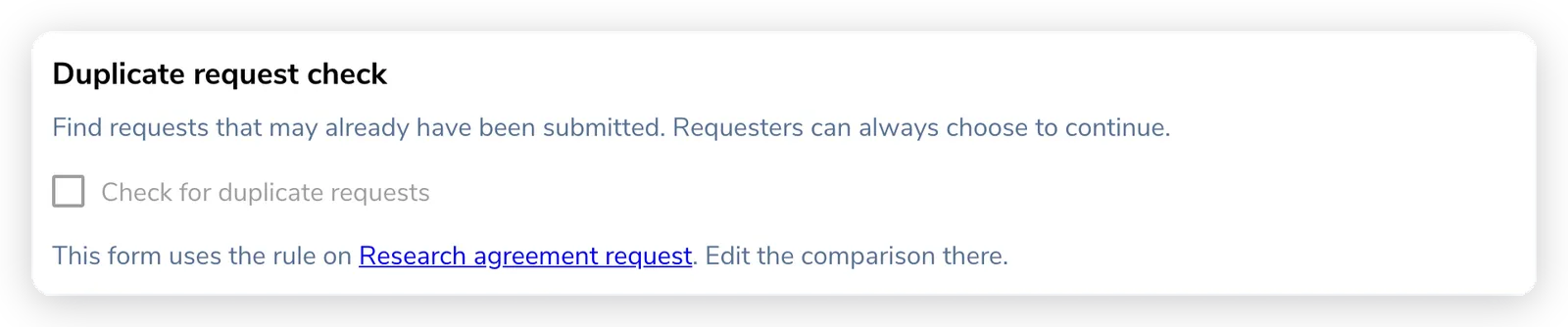
In Manage Forms, open the form and go to Settings. Under Duplicate request check, tick Check for duplicate requests. Everything in this section saves as you go.

Two people ask for the same agreement a week apart, sometimes on different forms. Nobody notices until two owners are drafting the same contract. The duplicate request check catches this at the door. It compares each new request with recent ones, warns the requester before they send, and flags both contracts so you can confirm or dismiss the match.
It is off by default. You turn it on per form.
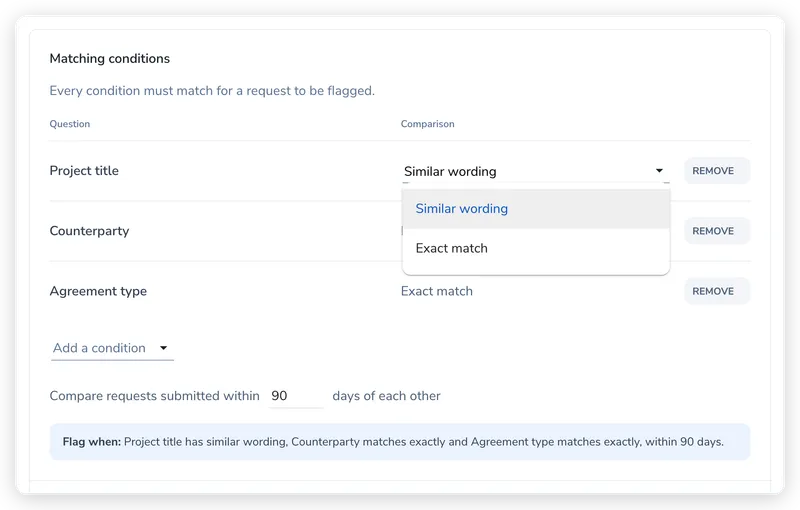
You pick the questions to compare and how to compare them. A request is only flagged when every condition matches.
| Question type | Comparison |
|---|---|
| Text | Similar wording or Exact match |
| Dropdown, Yes/No, Party | Exact match |
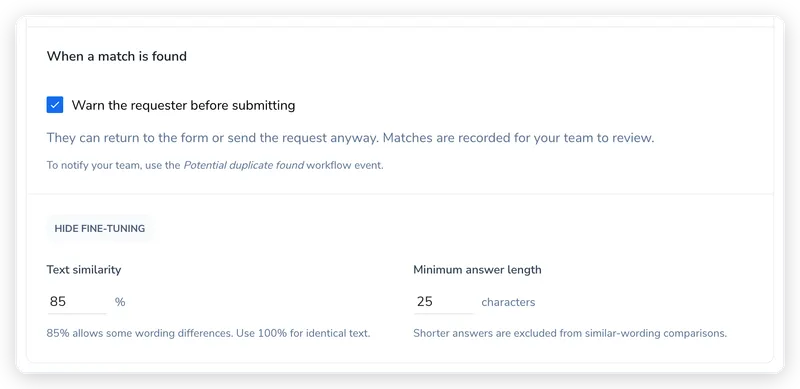
Similar wording scores how alike two answers are, with 85% as the default bar. We skip answers under 25 characters, so a short title never raises a flag on its own. Exact match ignores capitalisation, punctuation and spacing. For a Party question it compares the organisation or person name.
We only look back 90 days by default, and only at submitted requests. Requests sent before you turned the check on count too.
In Manage Forms, open the form and go to Settings. Under Duplicate request check, tick Check for duplicate requests. Everything in this section saves as you go.
Pick a question under Add a condition (a) and choose its comparison (b). Text questions start on Similar wording. Set the window in Compare requests submitted within (c), anywhere from 1 to 730 days. The Flag when line reads your rule back to you.
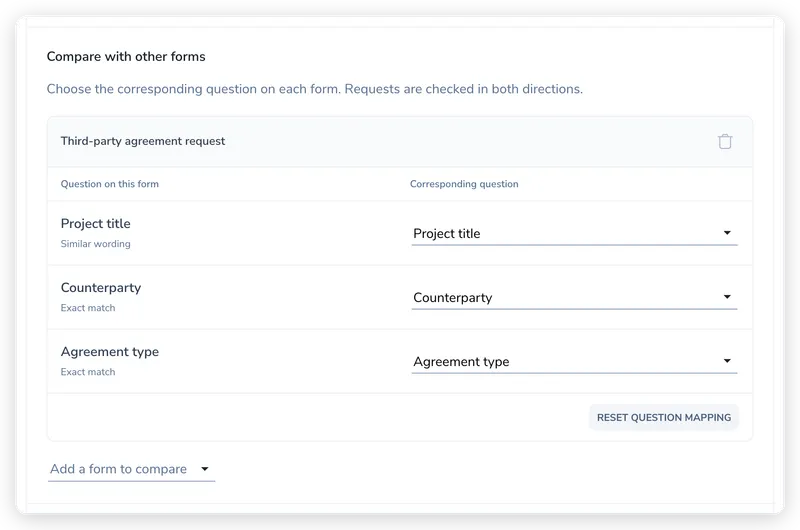
If the same request can arrive on another form, add it under Add a form to compare (a) and pick the matching question for each condition (b). Only questions of the same type are offered, and we skip the form until every condition is mapped. The check runs in both directions, so the other form needs no setup.
Warn the requester before submitting is on by default. Turn it off to record matches quietly. Show fine-tuning reveals Text similarity (50 to 100%, default 85%) and Minimum answer length (8 to 500 characters, default 25).
A form can only belong to one rule. On a form you added under Compare with other forms, the checkbox is greyed out and a note points you to the form that holds the rule.
When the requester clicks Submit, we check their answers first. If they match an earlier request, they see Have you already sent this request? with the matching answer, who sent it, when, and on which form.
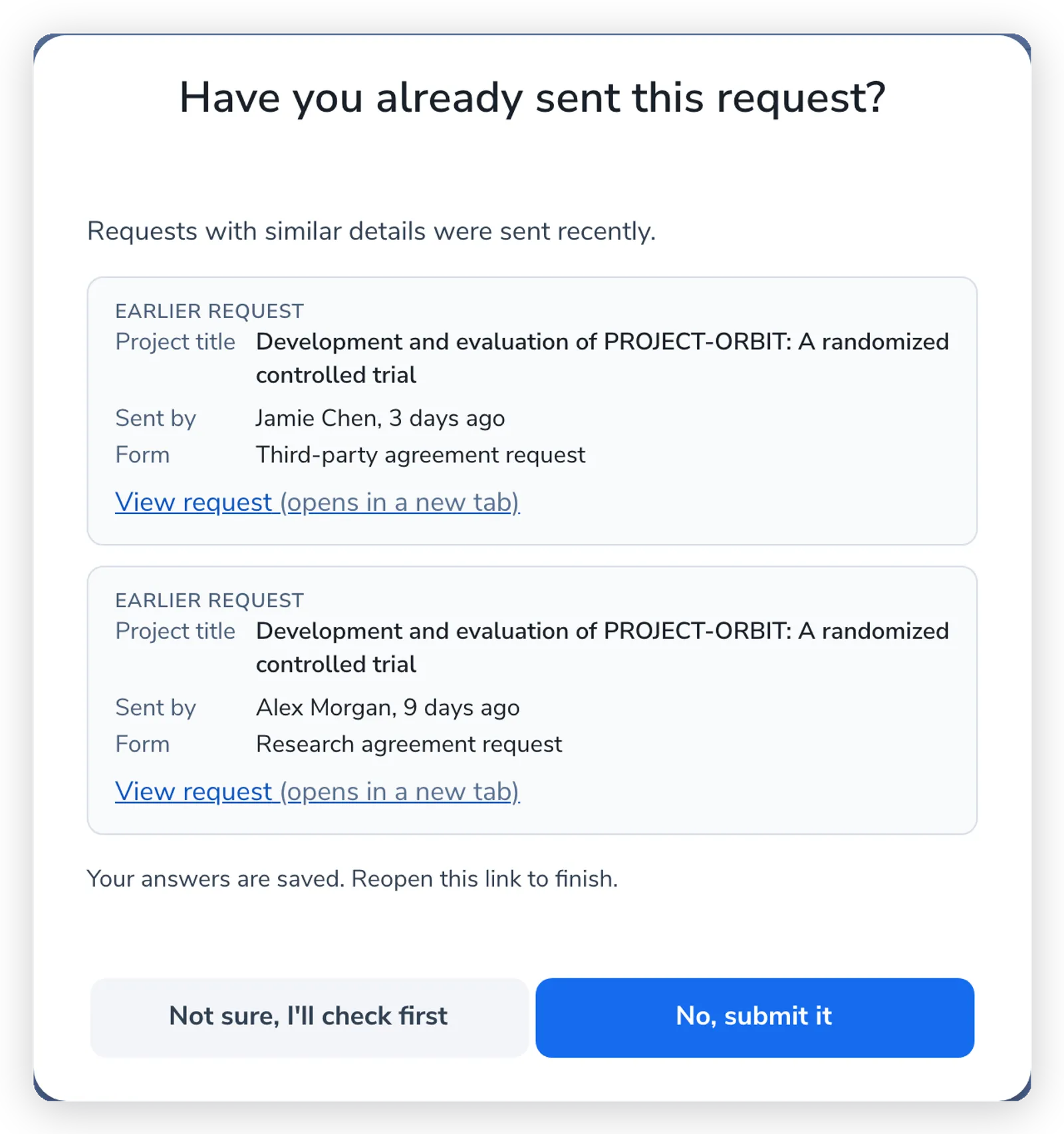
Only people signed in to your Pactly account see these details, and View request only appears if they can open the earlier request. Someone on a public link without signing in just sees a short note asking them to check with their contact first.
The warning never blocks a request. If the check cannot run, the form still goes through.
When a submitted request matches an earlier one and both have contracts, we link them as is a possible duplicate of and add a Possible duplicate request entry, marked System, to both timelines. If either request has no contract yet, there is nothing to flag.
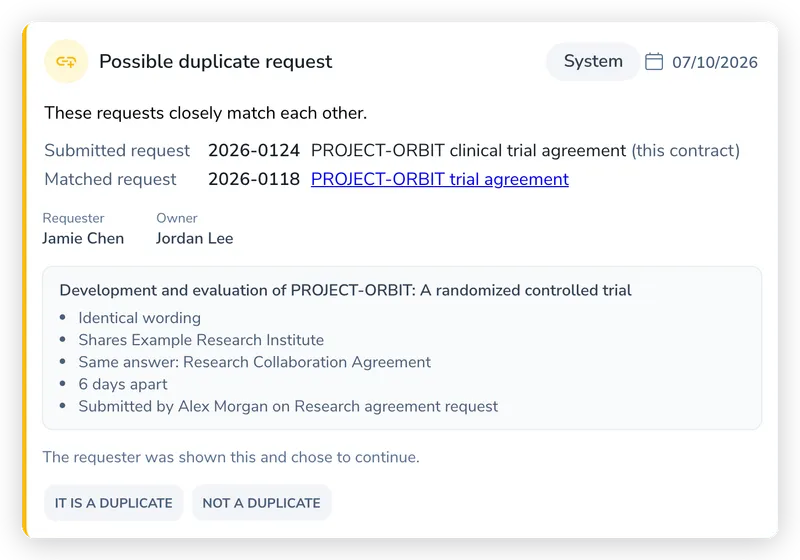
The timeline entry names both requests with their reference numbers, the requester and the contract owner. It shows why they matched, how many days apart they were sent, and whether the requester was warned. Click through to the other contract to compare, then click It is a duplicate (a) or Not a duplicate (b).
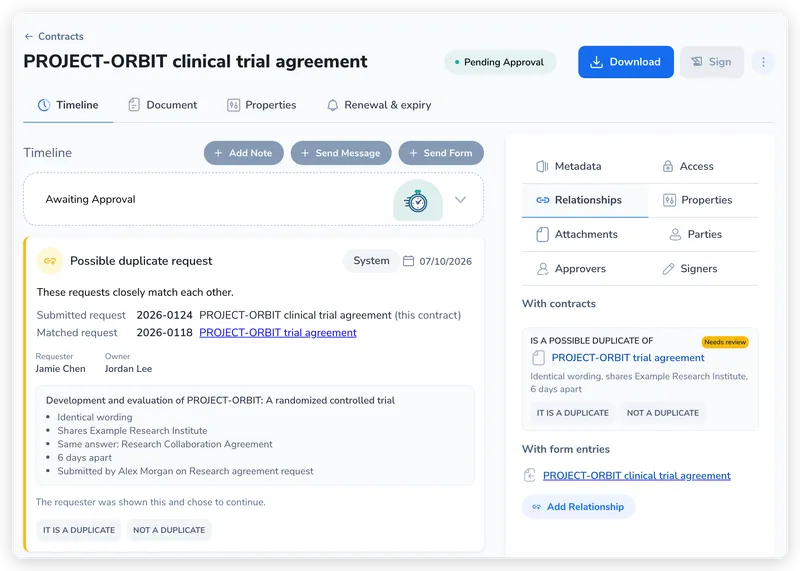
The same pair sits on the Relationships tab of both contracts with a Needs review label (a), a one-line summary and the same two buttons.
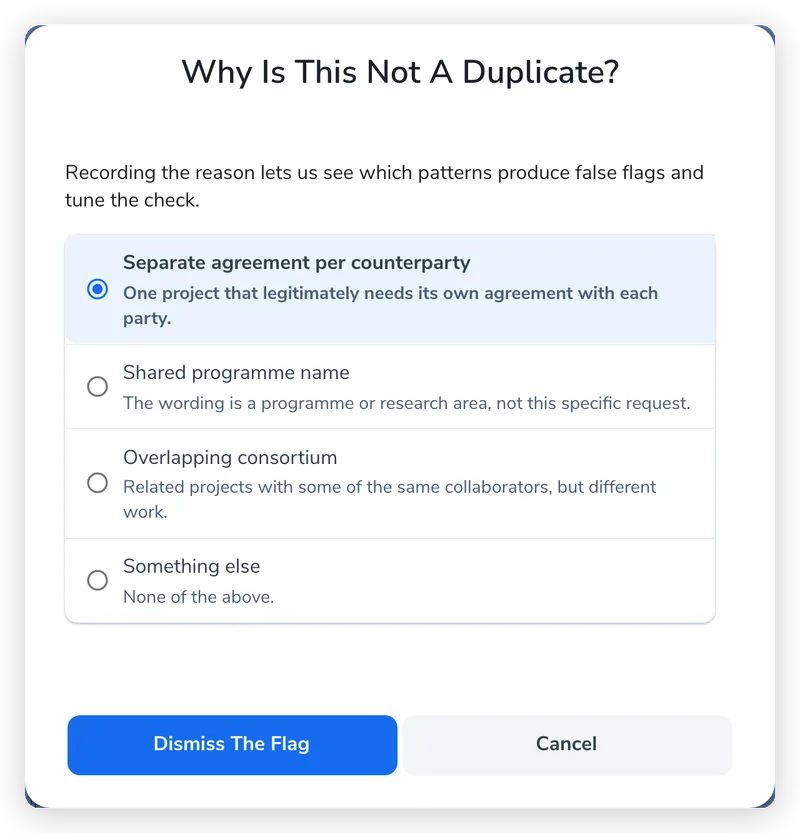
Click It is a duplicate to confirm. To dismiss, click Not a duplicate, pick one of the four reasons and click Dismiss the flag.
Once you decide, both timelines record who decided and why, and the flag collapses to one line you can expand. The decision is final and covers that pair only, so other flags on either contract still need their own review. Confirming does not change either contract. If one request should not go ahead, abort or archive it yourself.
You can review a flag when you can open both contracts and manage relationships on at least one of them. If you cannot open the other contract, the timeline just says a possible duplicate was found, and the pair is not listed on Relationships.
By default we do not notify anyone. The flag waits on the contract until someone opens it.
To get an alert, add a workflow action on the Potential duplicate found event, for example a Notify action that emails the contract owner. The event fires on the new request’s contract. See Advanced Workflow Actions and Conditions for how to add one.