1
Check the funding for each collaborator
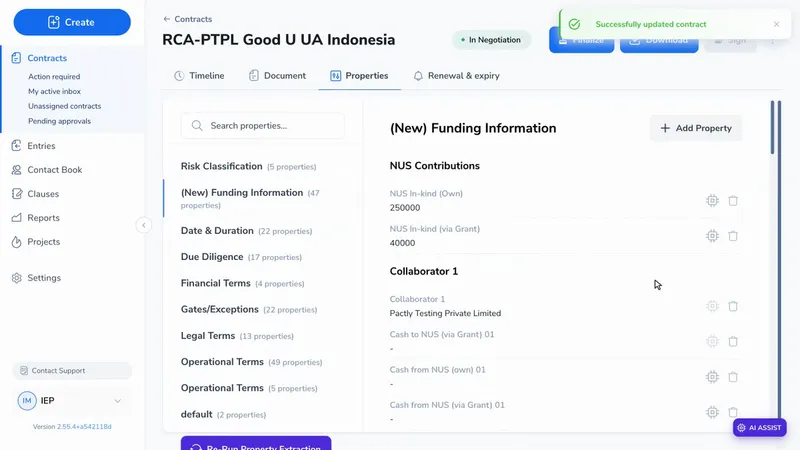
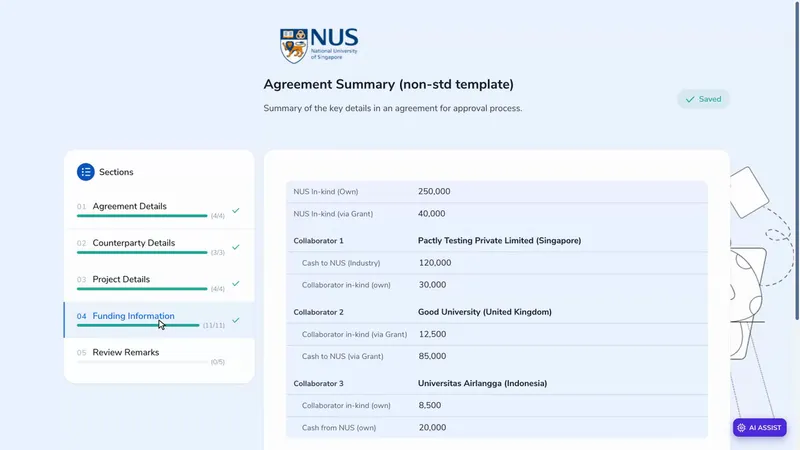
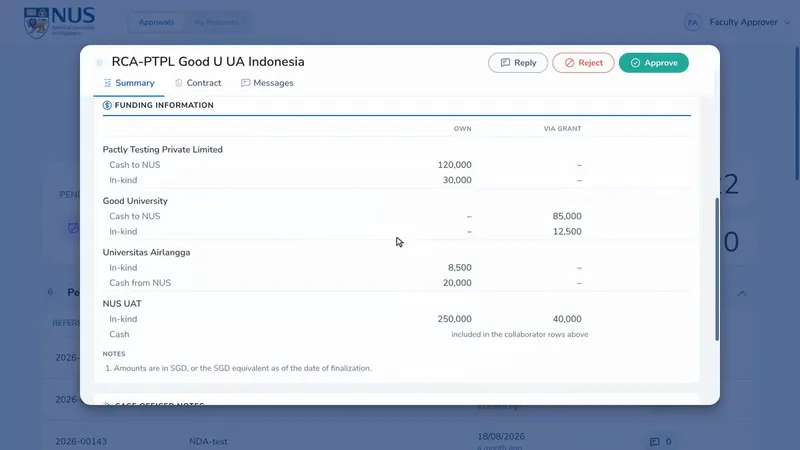
Open the Properties tab and pick Funding Information. The amounts recorded here fill the Agreement Summary and can change how many approvers the agreement needs, so correct them now rather than later.
When an agreement involving IEP has been negotiated, the faculty manager takes it the rest of the way: finalise the document, confirm who signs the forms and who approves, complete the Agreement Summary, wait for each PI to acknowledge, then prepare the signature request. Most of that sequence runs on its own once the first step is taken. This guide shows the few points where a decision is yours.
Open the Properties tab and pick Funding Information. The amounts recorded here fill the Agreement Summary and can change how many approvers the agreement needs, so correct them now rather than later.
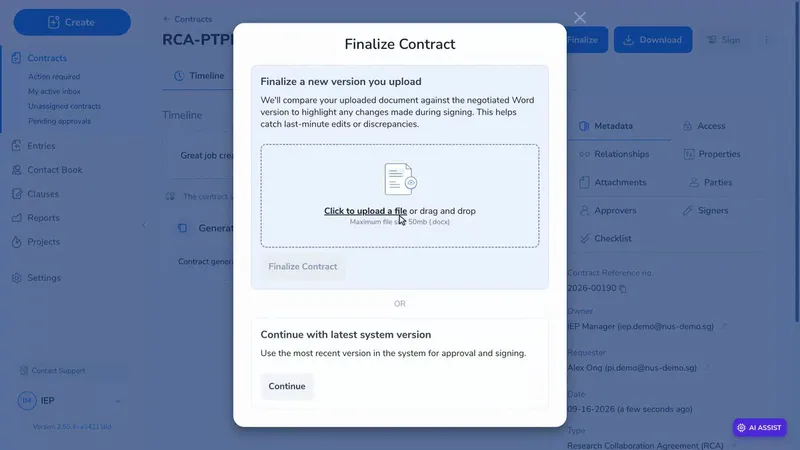
Back on the Timeline tab, select Finalize. Use the latest version in Pactly by selecting Continue, or upload the final document if it was agreed outside Pactly.
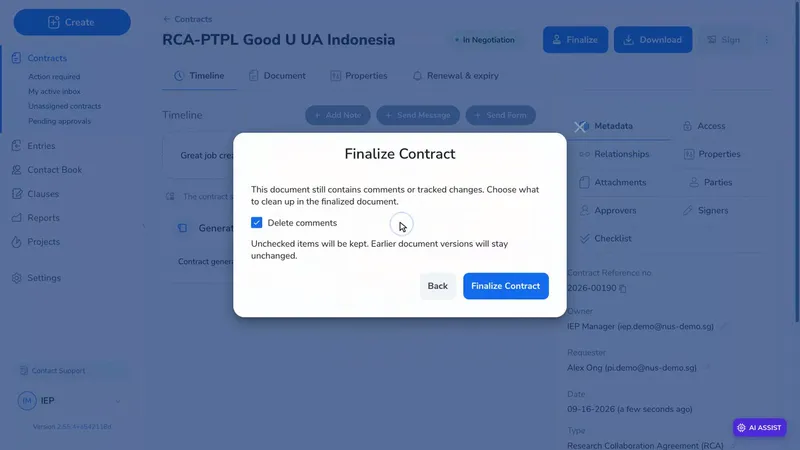
If the document still carries comments or tracked changes, Pactly asks what to clean up. Tick what should be removed from the finalised document, then select Finalize Contract. Earlier versions are kept as they are.
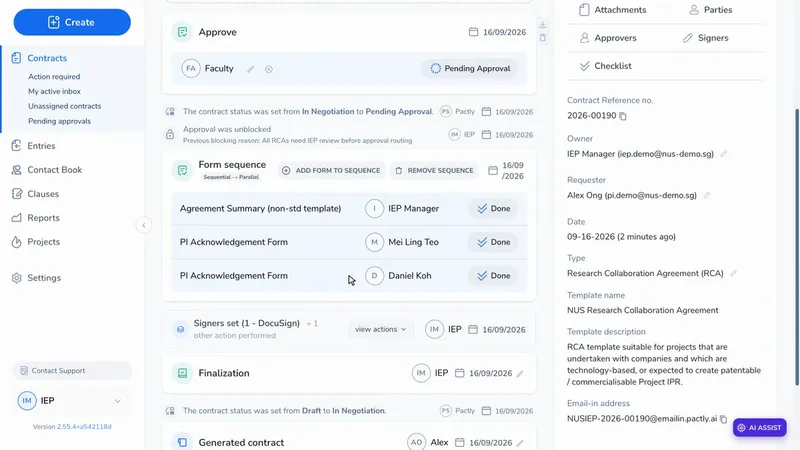
Finalising starts the form sequence on the timeline: the Agreement Summary for you, then a PI Acknowledgement Form for the PI. Check both before you complete the summary.
If the agreement has more than one PI, select Add Form to Sequence on the form sequence card, choose PI Acknowledgement Form, and pick the additional PI. Repeat for each one.
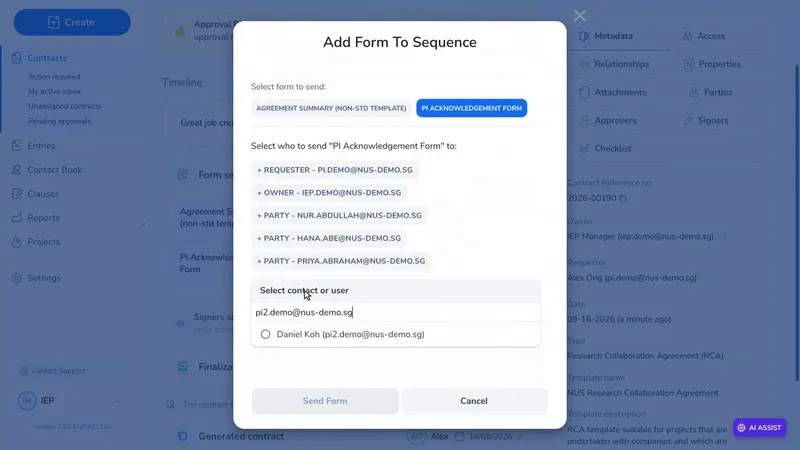
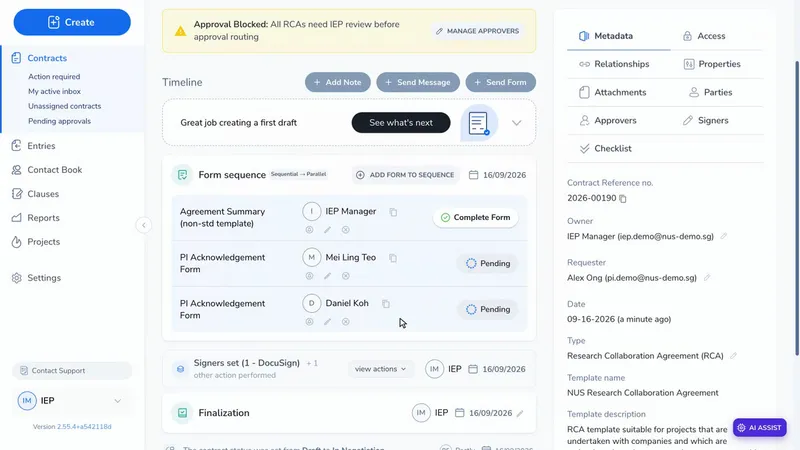
Each PI now has their own row. Their forms go out together once you submit the Agreement Summary, so this is best done first. It can still be done afterwards, as long as no PI has acknowledged yet.
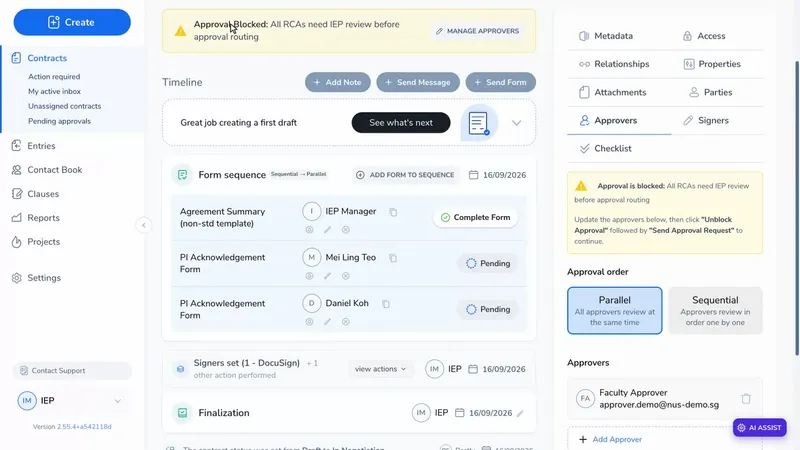
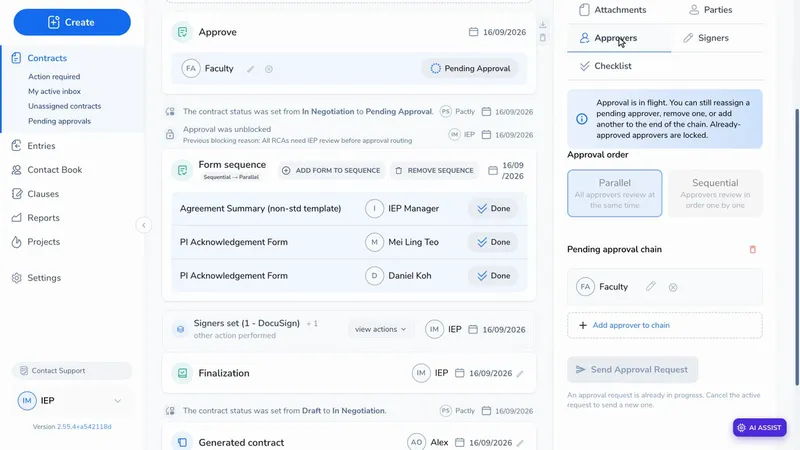
Open Approvers in the side panel. For a straightforward agreement, one faculty, no increased financial commitment for NUS and no conflict of interest, Pactly sets the approvers itself. In more complex cases approval is blocked and the reason is shown. Read it, set the relevant approvers, then select Unblock Approval.
Open the Agreement Summary from the form sequence card. The parties, the project and the funding for each collaborator are already there from the agreement. Read through each section.
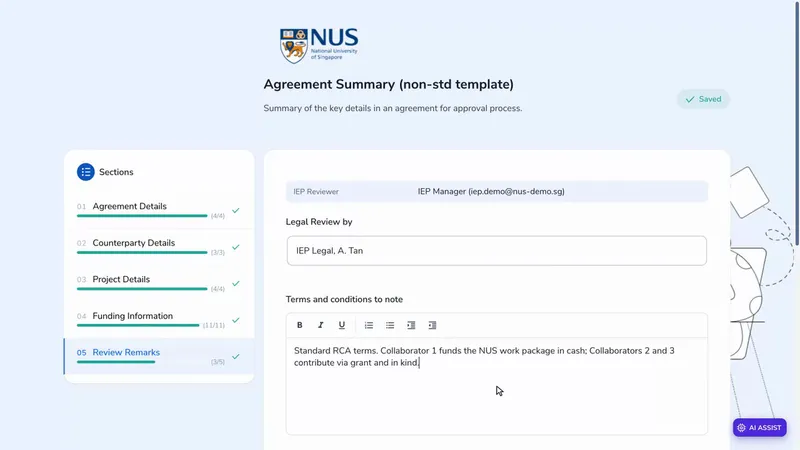
In Review Remarks, record who did the legal review, the terms to note and any comments, then submit. Submitting sends the PI Acknowledgement Form to every PI at once.
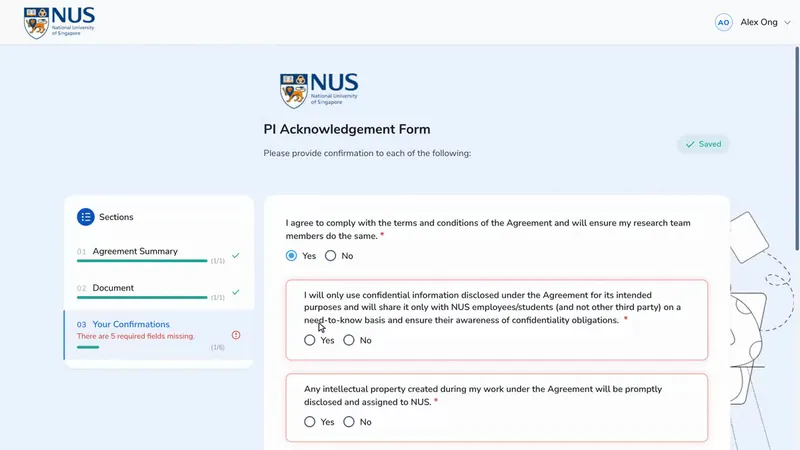
The PI receives a link, reads the summary and the document, answers the confirmations and signs. Nothing is needed from you at this point.
Each PI has a named result on the form sequence card. Acknowledged means they answered Yes to every confirmation. Negative acknowledgement, with a red cross, means they answered No to at least one confirmation. Submitted means the answers do not establish either result. A negative acknowledgement does not itself reject the agreement. When every PI has submitted, the sequence is complete.
If a PI needs to submit a corrected acknowledgement, choose Void and reissue on that PI’s submitted row. Give a reason and confirm the recipient. Pactly retains the original answers for audit, disables the old link and adds a replacement form. The other PIs’ submissions stay unchanged.
Any approval already running continues. The replacement will not create a duplicate approval while one is active; cancel and reissue the approval separately if the correction calls for it. See voiding and reissuing a submitted form for the full behavior.
When the sequence completes, Pactly sends the approval request to the approvers you checked earlier. The timeline shows the request and its status, and the Approvers panel shows the chain.
Each approver opens the request in their Approval Hub and reads the Agreement Summary, including the start date or start condition, term, hosting faculty and department where recorded. The summary also shows each PI's acknowledgement result. The approver then approves or rejects the agreement. You will see the decision on the timeline.
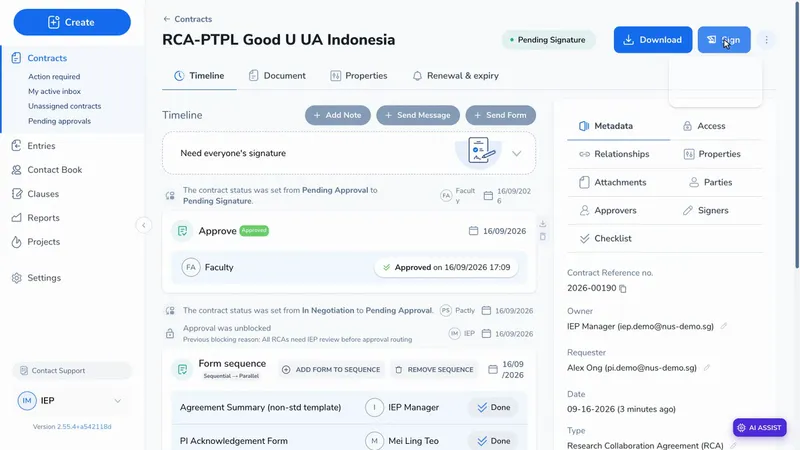
Once the approval is complete, the Sign button becomes available at the top of the agreement.
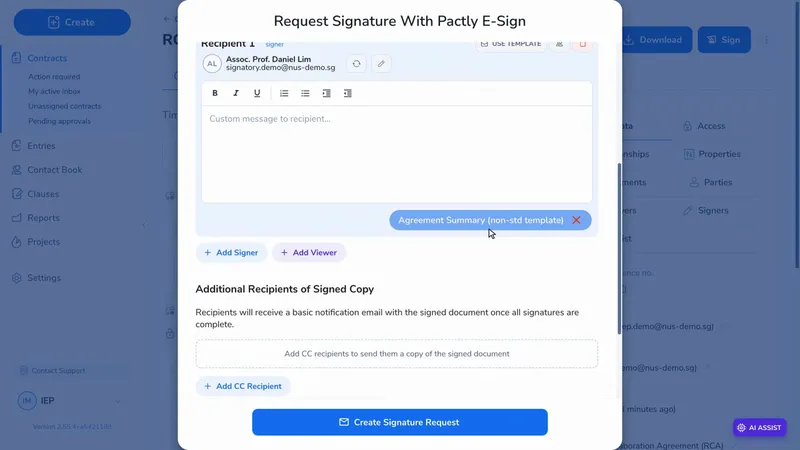
Choose parallel or sequential signing and confirm the recipients. For the recipient who needs the Agreement Summary, select Attach Form on their row.
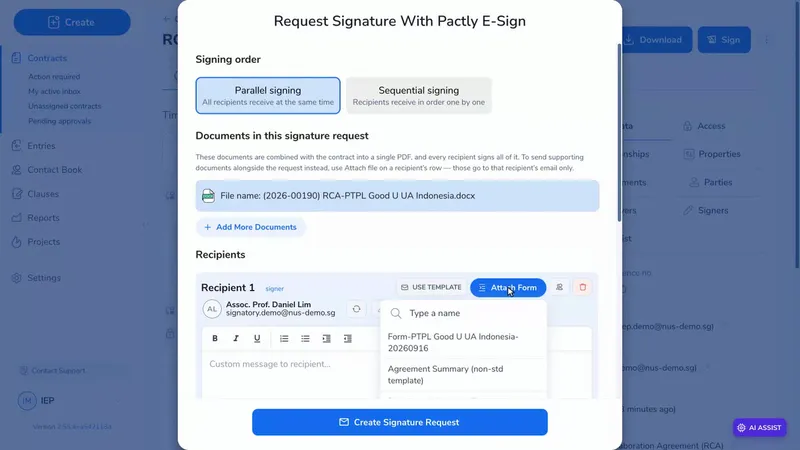
Pick the Agreement Summary from the list. It appears as a chip on the recipient row. Check that it is there, then select Create Signature Request.